Using Library Large Screen Display
Using our Apps and Tools
2
Posts
1
Posters
89
Views
-
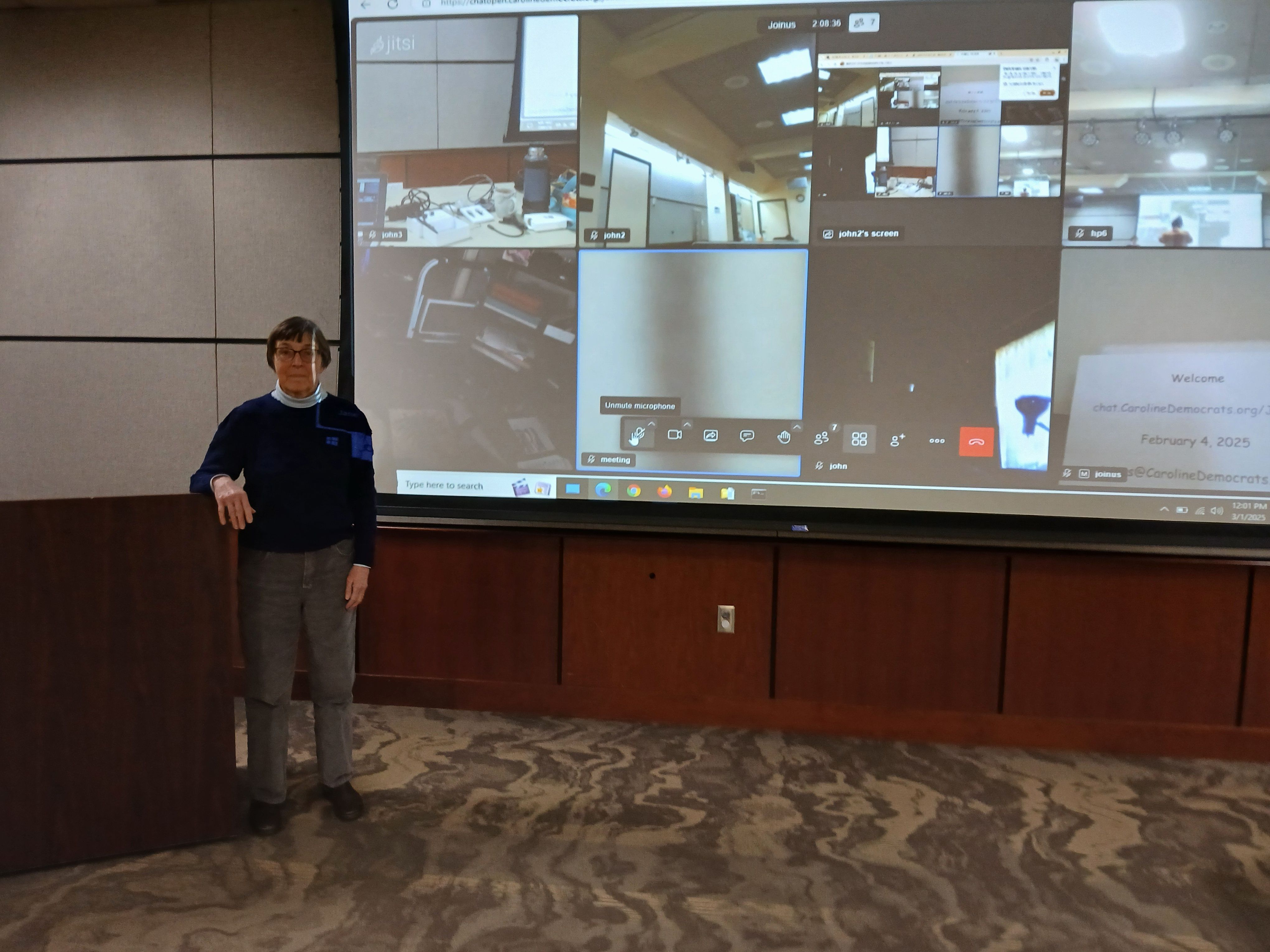
**draft. the denton library has a wonderful 10 x 15 FEET projector. it can take a laptop video or zoomD display and make it BIG. hooking up to make that happen is a snap.
the unit consists of the display screen, a simple control panel, and a place to plug your laptop. simply:
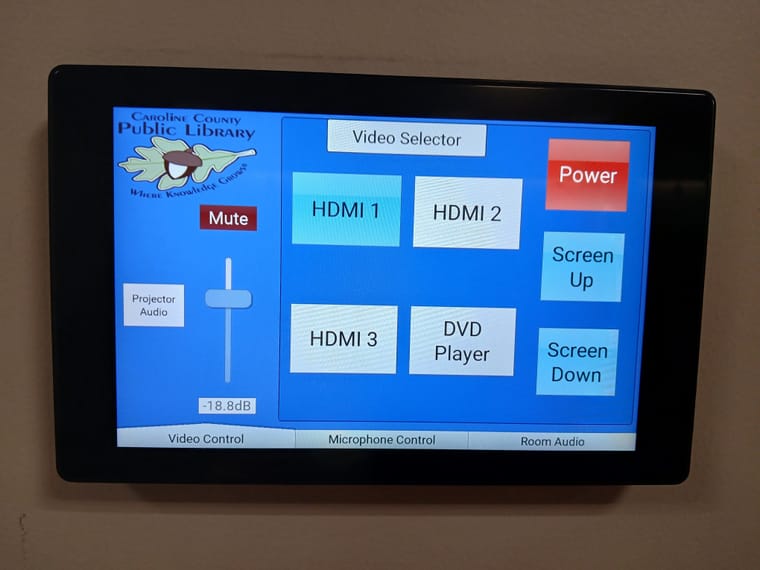
- the control panel is touch sensitive. simply press the panel, press the power icon (to power up the display motor), and press the screen down button. the screen will magically lower
- take your hdmi display cable and plug it into your laptop and one of the 3 available slots on the wall of the library. (and also press the slot1/2/3 icon on the control panel to select). this is a HDMI plug. not vga or displayport. (the library does have vga/dvi adapters). but make sure your laptop can produce HDMI.
- thats it.
some of the gotcahas:
- your laptop or chromebook is displayport. get an adapter for displayport to hdmi.
- you have a wireless hdmi connector but it does not seem to work. some do/ some dont. if it does not work, switch to hdmi cable or get a different wireless connector. (i do have one that seems to work well. sea.captain).
- only the background of the laptop gets displayed. you need to figure out the magic setting on your laptop. so test this before you are holding a meeting. this will happen on a chromebook.
-
Control panel on wall near projector